How to Automate Your Pinterest Workflow with Notion (Without Paying for Scheduling Tools)
Pinterest has a rather lovely business model. You create something once, and it can keep sending people your way long after you’ve forgotten about it.
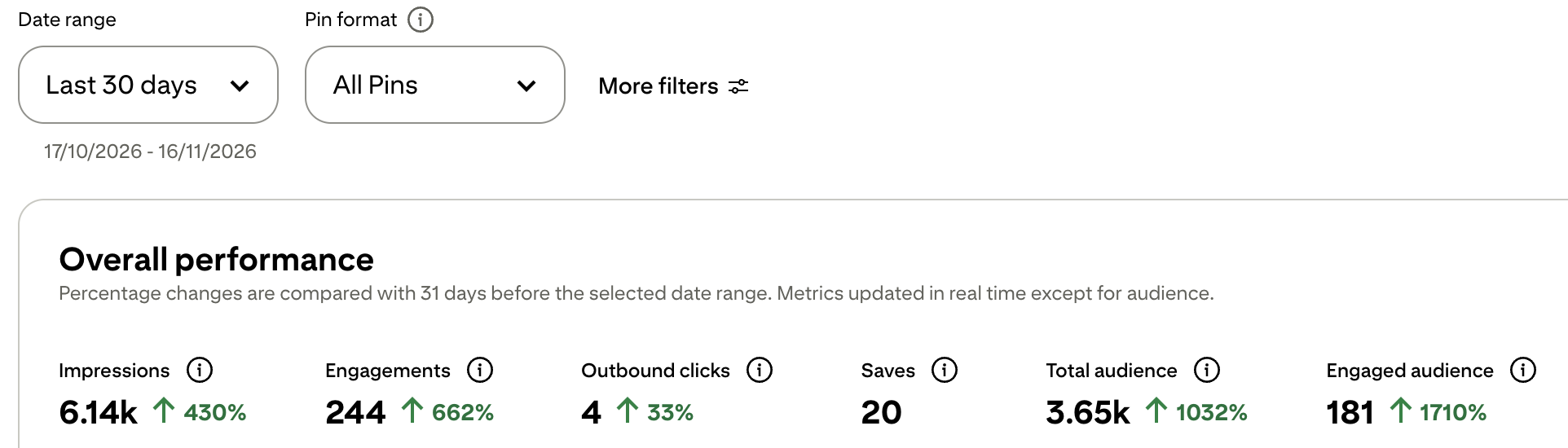
The catch? Getting there takes consistency which comes with a surprising amount of admin. Writing pin descriptions. Finding the right boards. Adding links. Scheduling posts. Checking analytics. Then doing it all over again for the next batch of content.
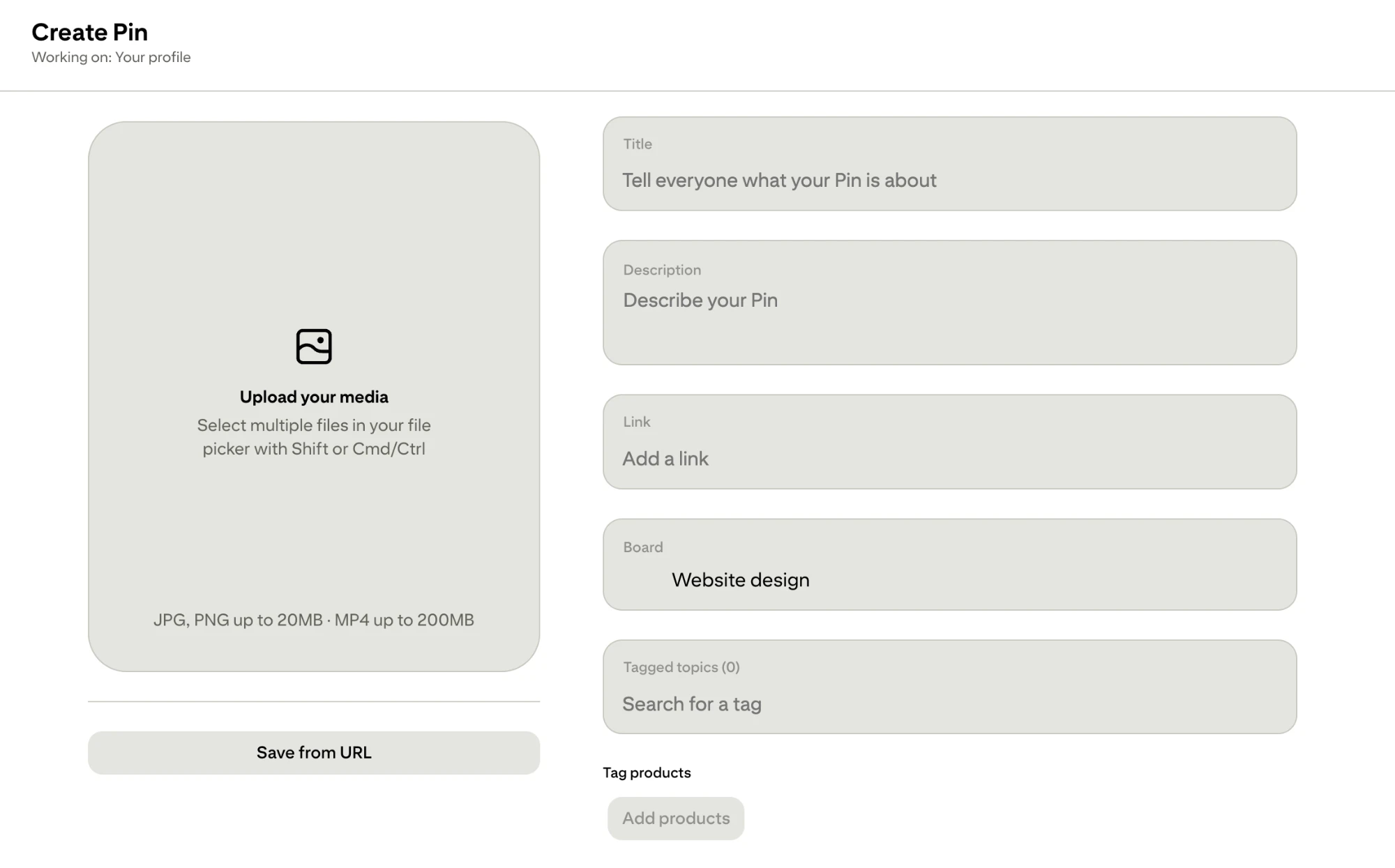
Before you know it, your attempt to build a long-term traffic source has turned into another part-time job. Which defeats the point a little, doesn’t it?
The good news is that you don’t have to manage every step manually. With a combination of Notion, AI and Make, you can build a Pinterest workflow that takes care of the repetitive bits, from preparing your pins to publishing them and tracking how they perform.
No expensive scheduling subscriptions. No daily pin-uploading ritual. Just a smarter way to get your content out there. Intrigued? Let’s look at how it works.
Why Managing Pinterest Manually Gets Tedious
For every pin, you’re manually writing a title, creating a description, finding the right board, adding a website link and scheduling the post. And that’s just one pin.
Depending on the content and research involved, preparing each one can easily take several minutes. Multiply that by the number of pins you want to publish every week, and you’ve got yourself quite a time-consuming little project (especially when you’re just starting out).
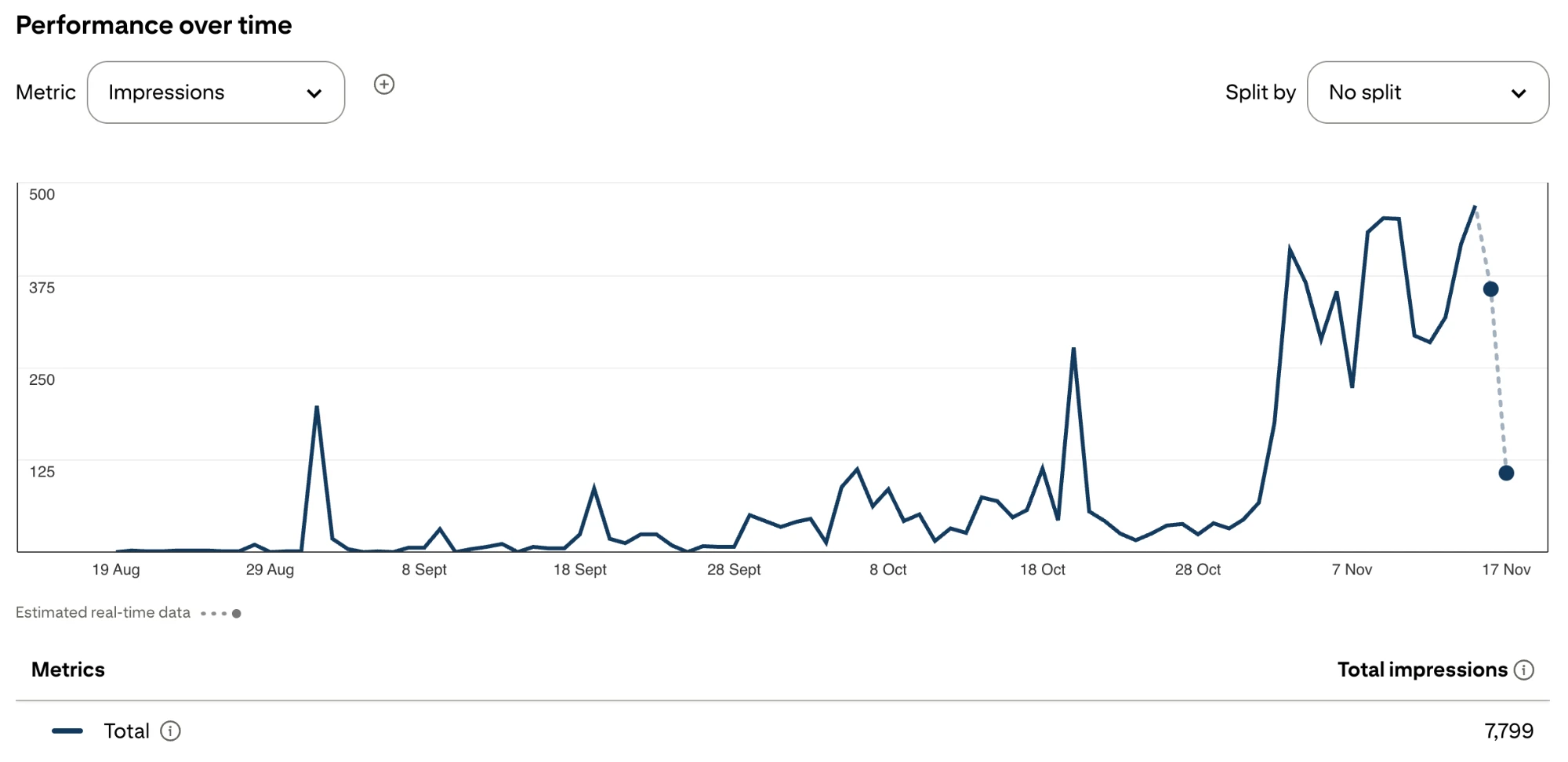
Pinterest relies on consistency, and publishing a steady volume of relevant content. The problem? Pinterest SEO takes time. Your content might need weeks or months to gain traction, so you don’t necessarily want to spend hours every day managing a platform before you’ve even seen meaningful results.
This is where automations come in. Now, I’m not suggesting you hand over your entire creative process to AI (please don’t). You should still be designing your own pins, choosing your visuals and making sure your content feels like you. Your brand has a personality. Your visuals have a style. That’s what makes people recognise and connect with your work.
What we want to automate is everything that happens around that creative process. Writing titles and descriptions, assigning boards, scheduling posts and analysing performance. Because those are the tasks that don’t necessarily need your creative energy.
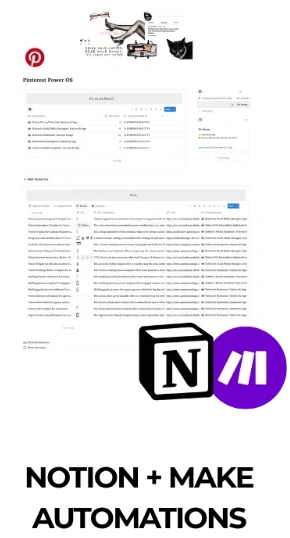
And that’s exactly what we’ve built the Pinterest Power OS to handle.
Meet Pinterest Power OS: Your Notion Pinterest Automation System
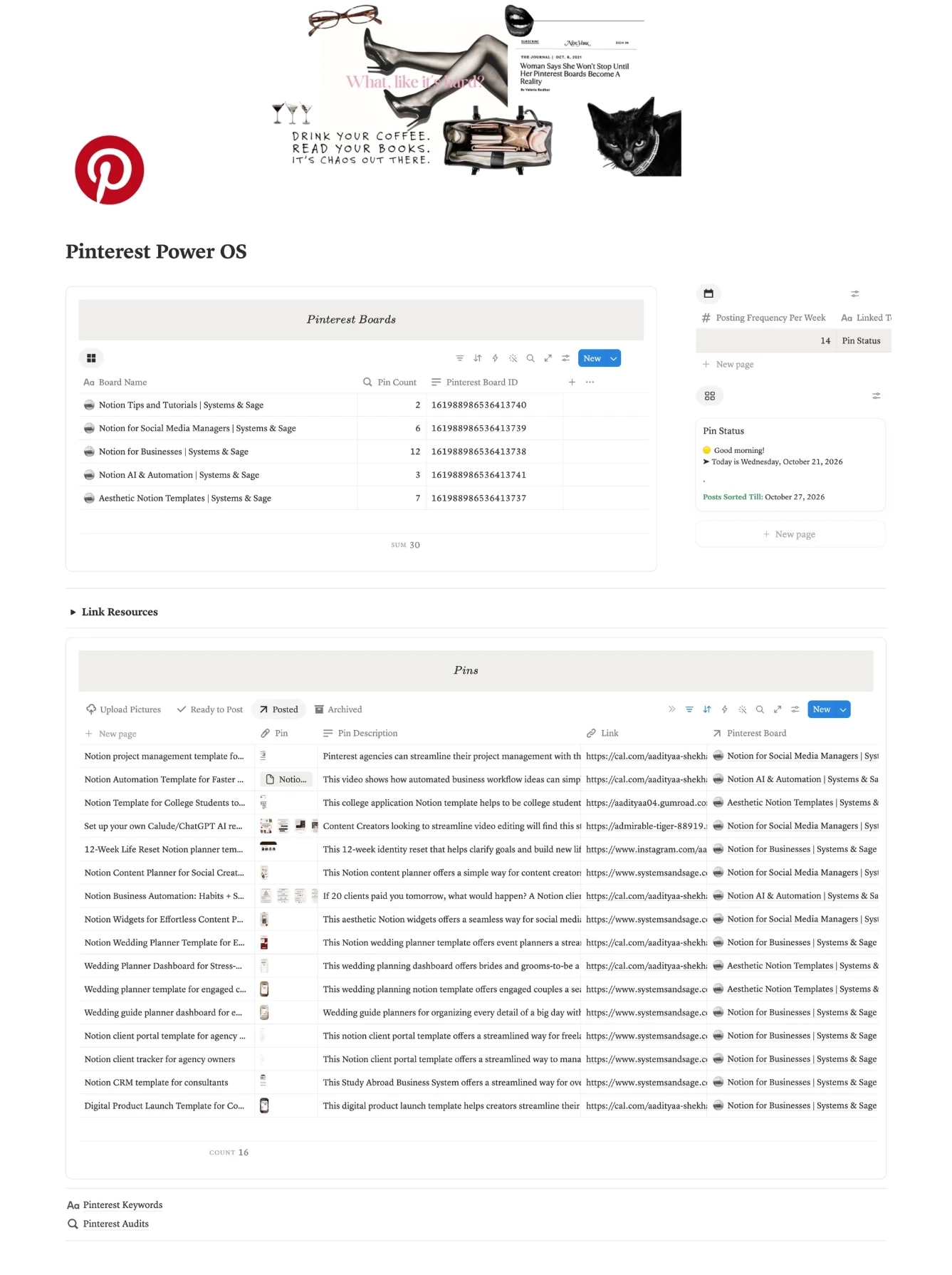
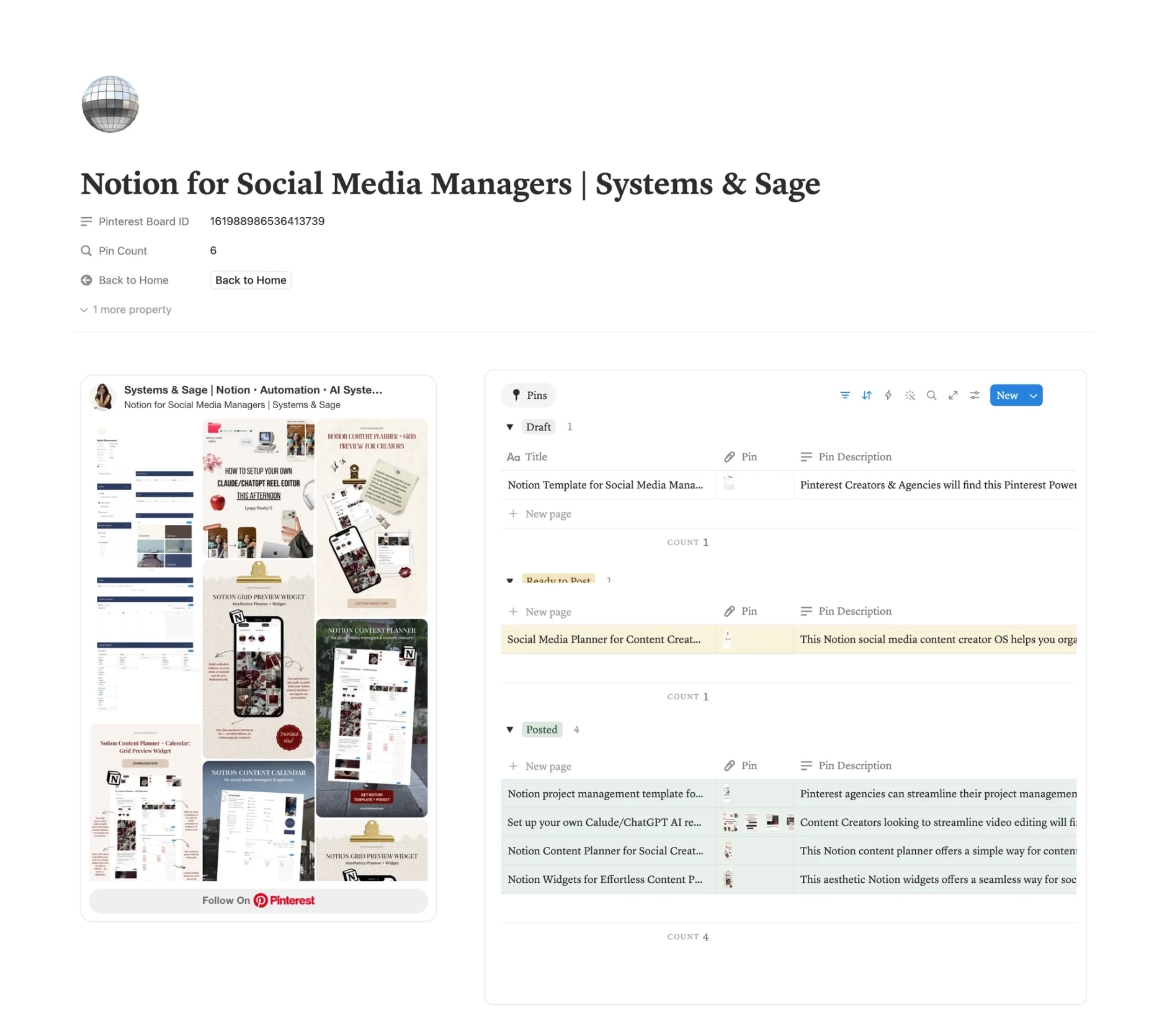
Pinterest Power OS is an all-in-one Notion dashboard designed to automate your Pinterest workflow using AI and Make. It brings together your content, keywords, Pinterest boards, posting schedule and analytics in one place.
Instead of managing every little task manually, you simply upload your finished pins to Notion, let the automations prepare them and have your content published on a schedule you choose.
Here’s what the system includes:
- A ready-to-use Notion dashboard.
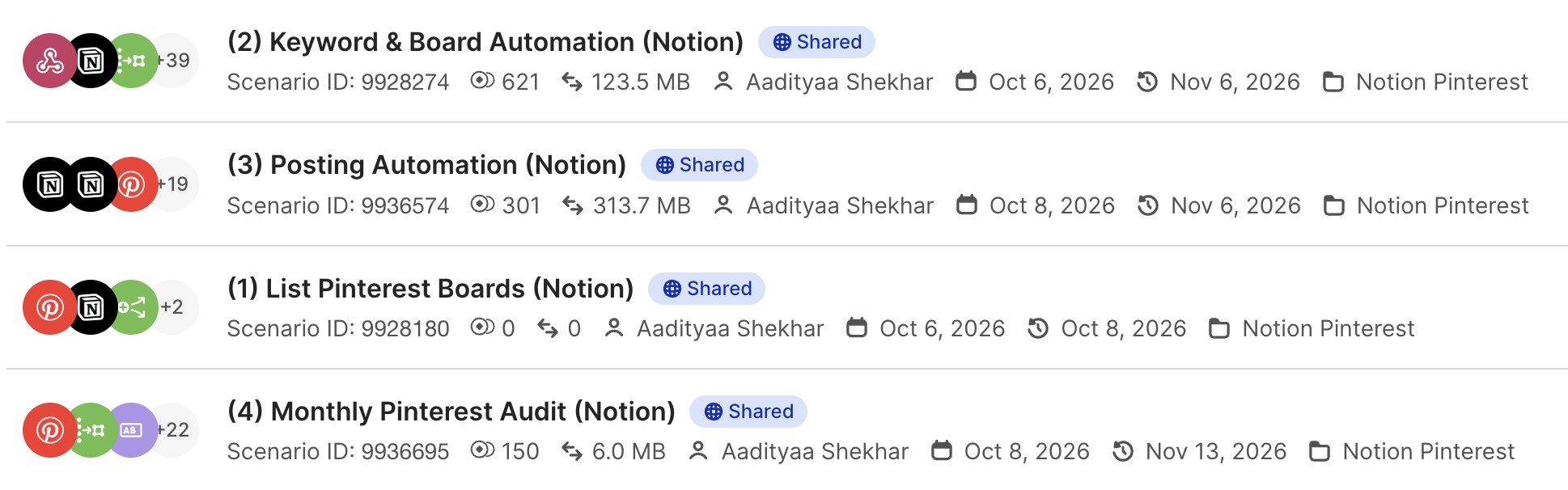
- Four Pinterest automations.
- Customisable AI instructions and posting intervals.
- Step-by-step setup tutorial videos.
Let’s see what each automation does.
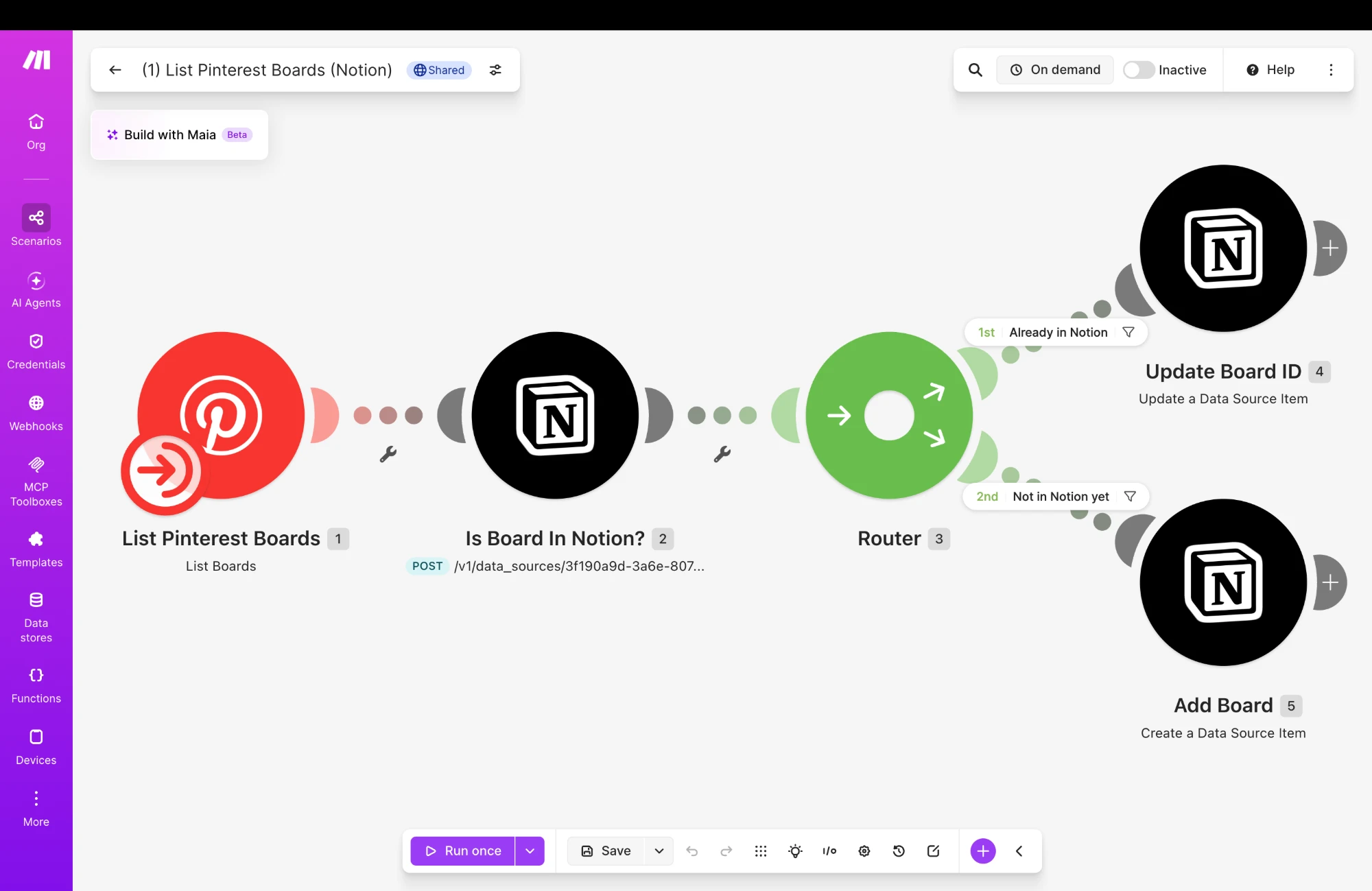
Automation 1: List and Sync Your Pinterest Boards
Remember how we talked about assigning every pin to a relevant Pinterest board? Well, this first automation takes care of that groundwork.
When you connect your Pinterest account, the automation retrieves your public Pinterest boards and adds them to your Notion dashboard.
It also extracts the corresponding Pinterest board IDs, which are needed when connecting your pins to the right boards through the automation.
The automation handles the initial import and checks for new boards whenever you run it again. So, if you create another board on Pinterest later, you can simply run the automation to add it to your Notion dashboard. No duplicate entries. No manually copying board details.
P.S. Before You Upload, Add Your Pinterest Keywords.
There’s one important prerequisite before we move on to generating your pin titles and descriptions: your keyword database. After all, we don’t want AI randomly guessing what your audience might be searching for.
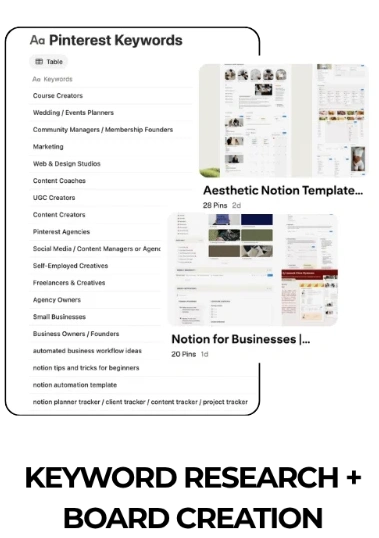
Head to the Pinterest search bar and type in a keyword related to your product or service. Pinterest will automatically suggest related search terms based on what people are looking for on the platform.
Collect the relevant suggestions and add them to your Notion keyword database. You can add as many relevant keywords as you need and keep building your list as your research evolves. This database becomes the foundation for the next automation.
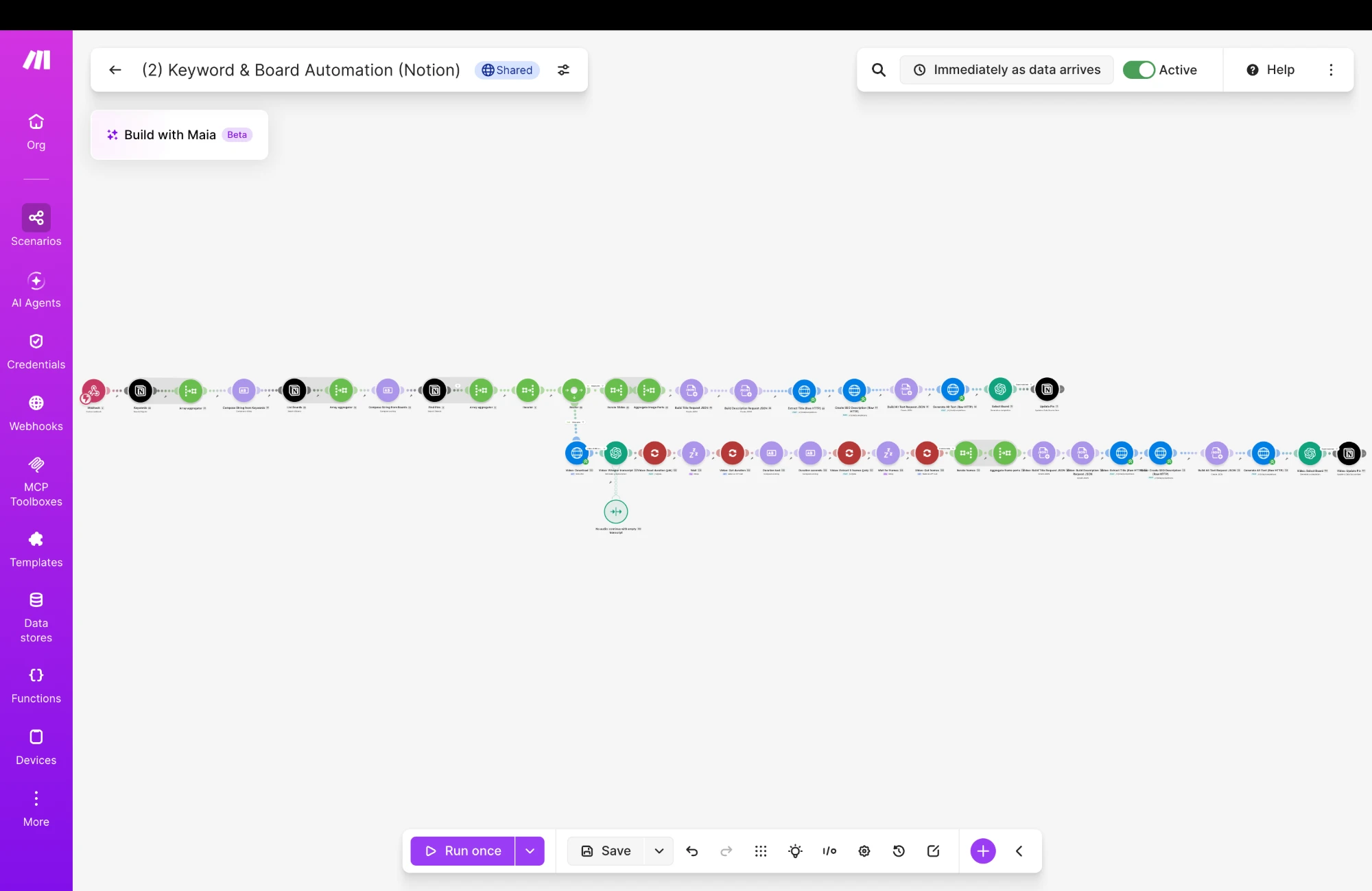
Automation 2: Generate Pin Titles, Descriptions and Board Assignments
Now comes the fun part. Once you’ve added your keywords and synced your boards, you can start uploading your pins directly to Notion.
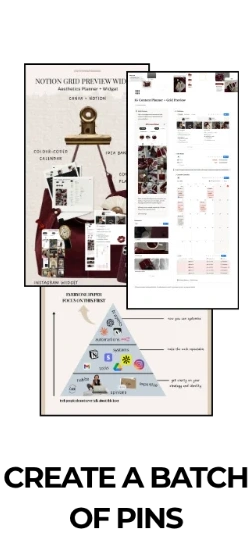
Whether you’ve designed them in Canva, Adobe or another tool, simply create a new entry in your Pinterest database and attach your finished content. The system supports static images, carousels and video pins.
You can also add the destination link you want each pin to direct people to. If different pins promote different products or services, simply add the relevant link to each one. But if all your pins lead to the same page, you can save that link in your Notion database template. It’ll automatically populate whenever you create a new entry.
One less thing to worry about.
Once your pins are uploaded, click the Bulk Prepare Post button. And let the automation do its thing.
Want to know what happens on the back end? There’s a YouTube video for that rabbit hole, waiting to be watched!
Your pins now have titles, descriptions and board assignments, all without you having to write everything from scratch. You can review the generated content inside your Notion dashboard and make any edits you’d like before publishing.
The system also checks the Pinterest description character limit and flags entries that need attention. If a description exceeds the limit, it moves into the archive view with a warning so you can fix it before posting.
The best part? Your AI instructions are customisable, so you can adjust how the system analyses your content and generates your pin descriptions.
Automation 3: Automatically Schedule and Publish Your Pins
Now that your pins are prepared, it is time to get them out into the world. This third automation handles the actual publishing process.
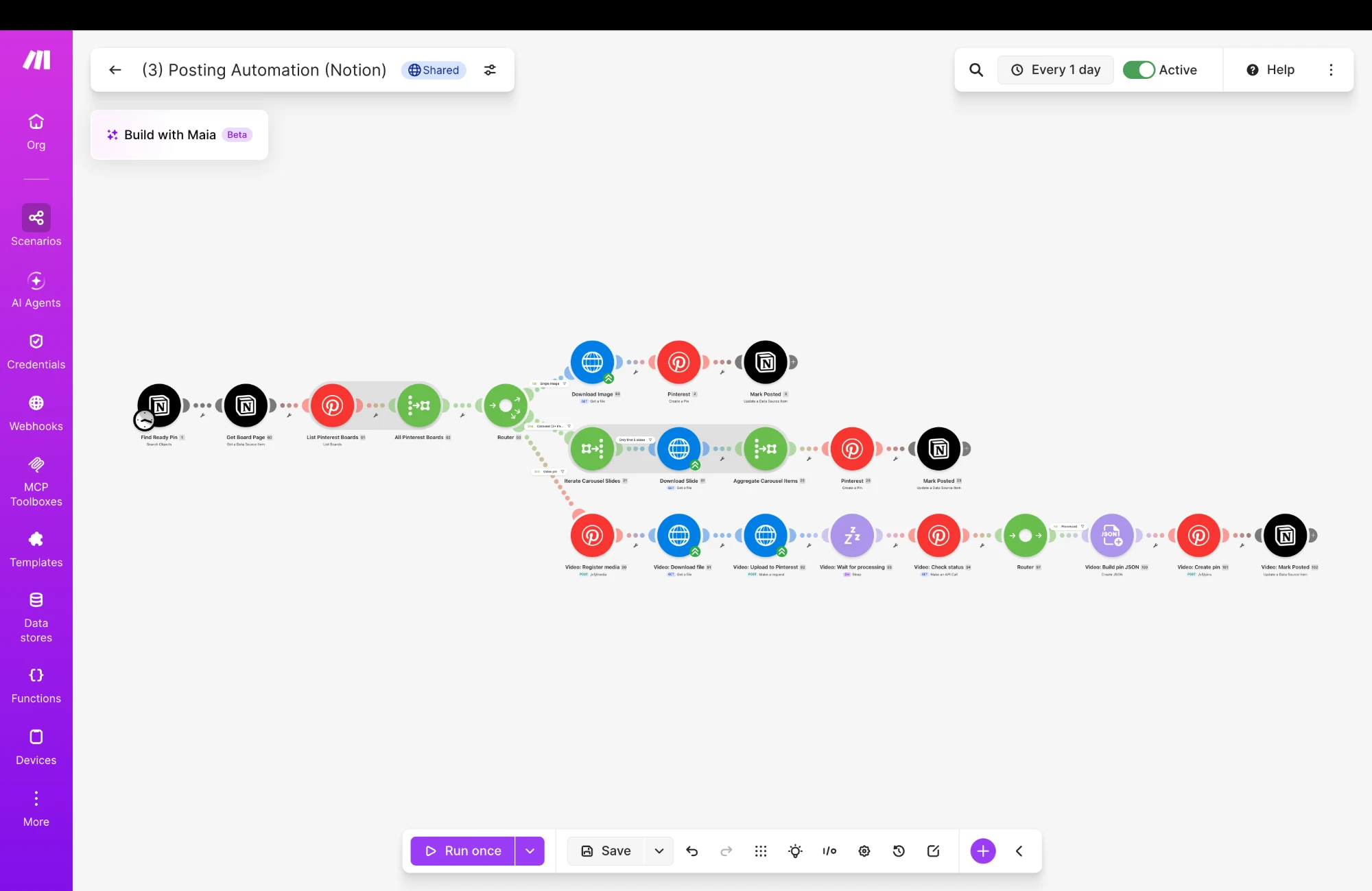
It picks up one pin at a time from your Notion database, checks which board it’s assigned to and publishes it directly to your Pinterest account. It also has separate publishing routes for:
- Static pins.
- Carousel pins.
- Video pins.
So you don’t have to worry about manually uploading different content formats.
But what about scheduling? That’s customisable too!
Inside your Notion dashboard, you can choose how frequently you want your pins to go live. Whether you want to publish once or 10 times a day, a few times a week or at another interval, you can adjust your posting frequency to suit your content strategy.
Once the posting automation is active, it will publish your prepared pins one at a time according to your chosen schedule. And you can track everything through your Notion dashboard.
Imagine designing a month’s worth of pins in one sitting, uploading them to Notion and letting the system distribute them while you focus on other parts of your business. Perfect, right?
Automation 4: Run Monthly Pinterest Account Audits
Publishing content consistently is great. But how do you know whether it’s actually working? Guess who can do that? The fourth automation (duh).
Your Pinterest Power OS includes an analytics dashboard that tracks important performance metrics, including:
- Impressions.
- Engagement.
- Outbound clicks.
- Saves.
- Individual pin performance.
- Board-wise performance.
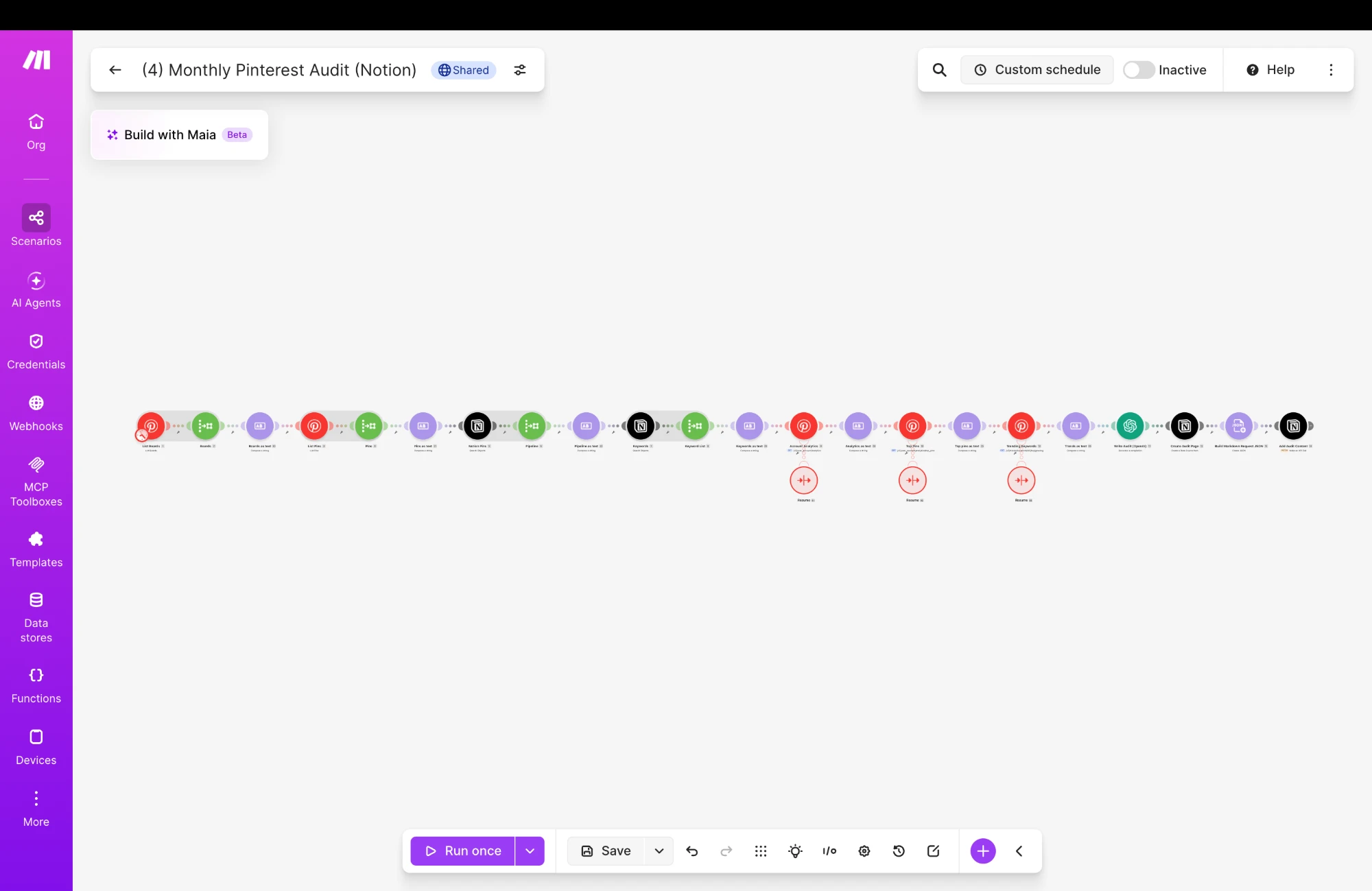
But we don’t stop at showing you numbers. The monthly audit automation uses AI to analyse your Pinterest account and turn that data into actionable insights. On the first of every month, you can generate an account audit covering:
- Overall account performance: Get an overall grade and a summary of how your Pinterest account is doing.
- 30-day performance analysis: Review your impressions, clicks, engagement and other important metrics over the past month.
- SEO quality: Understand whether your keywords are working, where your optimisation needs improvement and which new keywords you could explore.
- Account hygiene: Identify stale boards, outdated information and other areas that might need attention.
- Content strategy: Find your top-performing pins, identify formats worth experimenting with and understand what kind of content you should be creating more of.
Oh, and because the AI instructions are fully customisable, you can change the audit prompt to focus on the metrics and parameters that matter most to your business.
So instead of spending an afternoon going through analytics spreadsheets and trying to figure out what everything means, you get a much clearer picture of what’s working and what you should do next.
Can You Run Pinterest Power OS for Free?
Yes! You can run the system using the free plans of Notion and Make, provided you work within their limitations. Although, there are two things to keep in mind.
Free plans come with a 5 MB media upload limit
Make and Notion’s free plan restricts individual file uploads to 5 MB.
So, when uploading your pins to the dashboard, make sure your images and videos stay within that limit. If you’re using a paid Notion plan, you won’t have this particular restriction.
Make Free offers two active scenarios
Make’s free plan allows only two active scenarios at a time. Since Pinterest Power OS comes with four automations, you’ll need to manage which ones are active. But don’t worry. You don’t need all four running simultaneously.
Here’s how you can manage them:
| Automation | When to activate |
|---|---|
| List Pinterest boards | During initial setup or whenever you add new boards |
| Generate pin titles, descriptions and board assignments | Whenever you’re preparing a new batch of pins |
| Auto-publish pins | Keep active to maintain your posting schedule |
| Monthly account audit | Activate when you want to run your audit |
This way, you can work around the two-scenario limit without needing to upgrade your Make subscription. And if you’re already using paid versions of Notion or Make, you can simply keep all four automations active.
What Do You Actually Need to Set It Up?
Pinterest Power OS comes with everything you need to get started:
- A Notion dashboard: Your central workspace for managing pins, keywords, boards, posting schedules and analytics.
- Four ready-to-use automations: For syncing boards, preparing pins, publishing content and auditing your account.
- Customisable AI instructions: Adjust the prompts to suit your brand, content and preferred analysis.
- Customisable posting frequency: Choose how often you want your pins to go live.
- Setup tutorial videos: Follow step-by-step instructions to connect your accounts, configure the automations and get everything running.
You don’t need to build the entire workflow from scratch or figure out how all the moving parts connect. The tutorial videos walk you through the setup so you can get your Pinterest system up and running.
Watch the Setup VideoYour Content Should Keep Working, Even When You Don’t
Pinterest can be a brilliant long-term traffic source, but only if you’re willing to give it the consistency and time it needs. That doesn’t mean you need to spend every morning uploading pins, writing descriptions and checking whether your next post is ready.
You can spend a couple of hours designing your content, let your system handle the repetitive work and use the time you’ve saved to focus on things that actually need your attention.
Your creative energy is better spent creating ideas, developing your brand and making work that people want to discover. AI and automation can take care of the rest.
And if you’d like to build a Pinterest workflow that works quietly in the background, Pinterest Power OS is a pretty good place to start.
Ready to automate your Pinterest workflow?
Get Pinterest Power OS